Guide: Creating Programs / WINHOTEL Modules with PromptBuilder + PE_EDITOR
This guide describes the complete workflow from idea to finished AI prompt (e.g., for Claude Code) when creating a program or WINHOTEL module.
The division of responsibilities between the tools:
Tool Purpose Answers the Question
PromptBuilder Structured specification via form What should be built?
PE_EDITOR: Skill Reusable working instructions How should the AI work?
PE_EDITOR: Knowledge Base Background knowledge about the system What does the AI need to know?
PE_EDITOR: Project Profile Variables + Skill + Knowledge Base per project In which context?
Part A: One-Time Setup (Per Project)
You perform these steps once for each project (e.g., once for “WINHOTEL”). Every new module will then benefit from them.
A1. Create a Skill (AI Working Method)
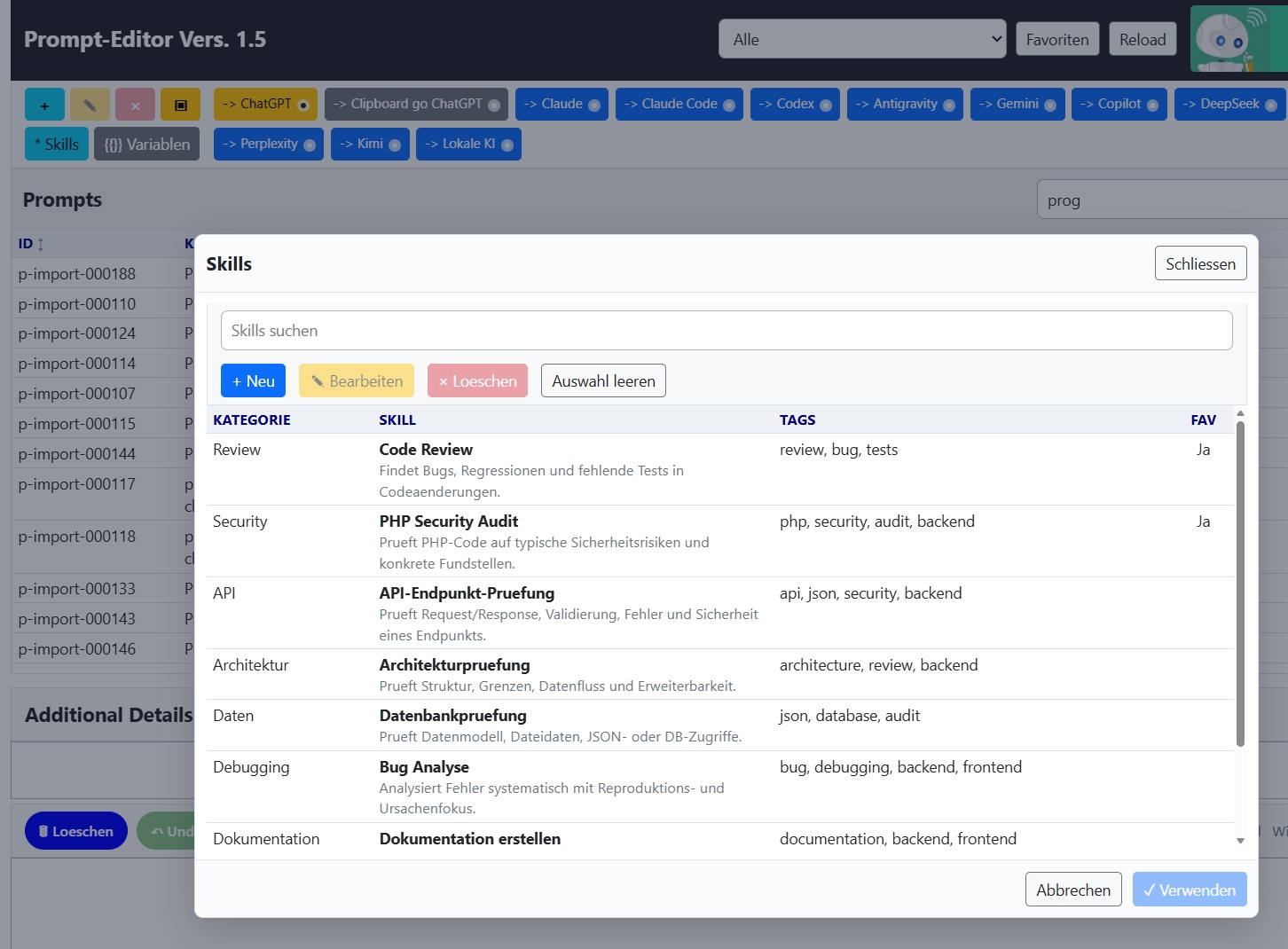
In pe.php → “ Skills”* → “+ New”:
Name: e.g. WINHOTEL Developer
Category: e.g. Development
Tags: php, javascript, winhotel
Prompt (example):
You are working on the project {{PROJECT}} ({{GOAL}}).
Rules:
- Do not introduce new 3rd-party libraries.
- Reuse existing structures and naming conventions.
- Use simple, maintainable PHP/HTML/CSS/JavaScript.
- Relevant files: {{FILES}}
- Context: {{CONTEXT}}
At the end of every response, list assumptions, modified files, test cases, and open issues.
The {{…}} placeholders are automatically filled from the project profile when sending the prompt, making the skill reusable across different projects.
A2. Create a Knowledge Base (System Knowledge)
In pe.php → “▣” button → “New”:
Add background information the AI needs to know about the system, such as:
What WINHOTEL is and which modules it contains
Data storage concepts (tables, JSON structures, no SQL, etc.)
Naming and coding conventions
What must never be modified
A3. Create a Project Profile
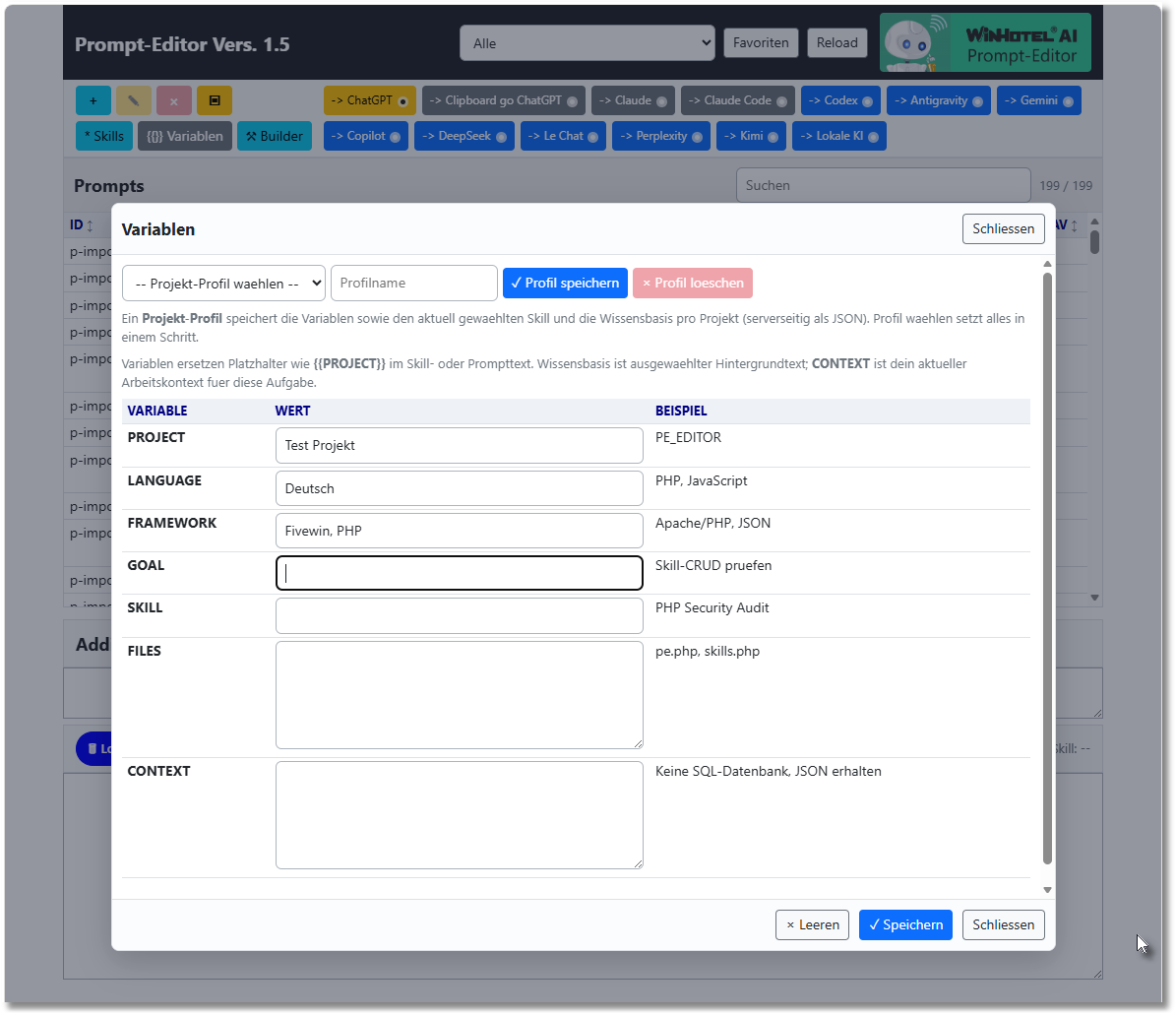
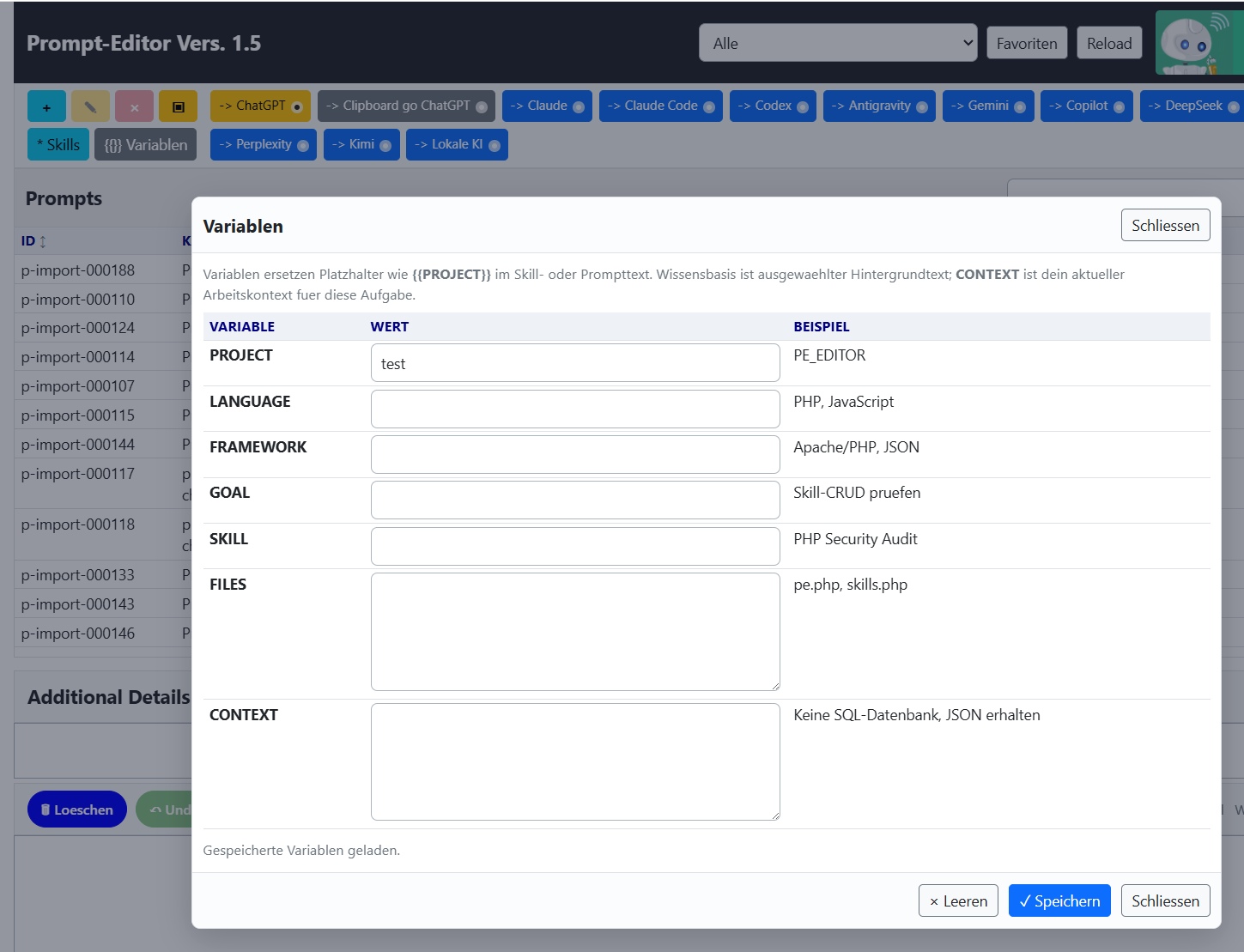
In pe.php → “{{}} Variables”:
Fill in the variables:
PROJECT: WINHOTEL
LANGUAGE: PHP, JavaScript, German
FRAMEWORK: Apache/PHP, JSON files
FILES: the project's typical entry-point files
CONTEXT: permanent constraints (e.g. “No SQL database”)
GOAL/SKILL may remain empty (GOAL changes per task)
First select the skill from A1 (“* Skills” → “✓ Use”) and the knowledge base from A2 (“▣” → “Use”)
Enter a profile name (e.g. WINHOTEL) → “✓ Save Profile”
The profile stores both the variables and references to the selected skill and knowledge base. It is saved server-side in PE_EDITOR/data/profiles-index.json.
Part B: For Each Module / Program (Recurring Workflow)
B1. Create the Specification in PromptBuilder
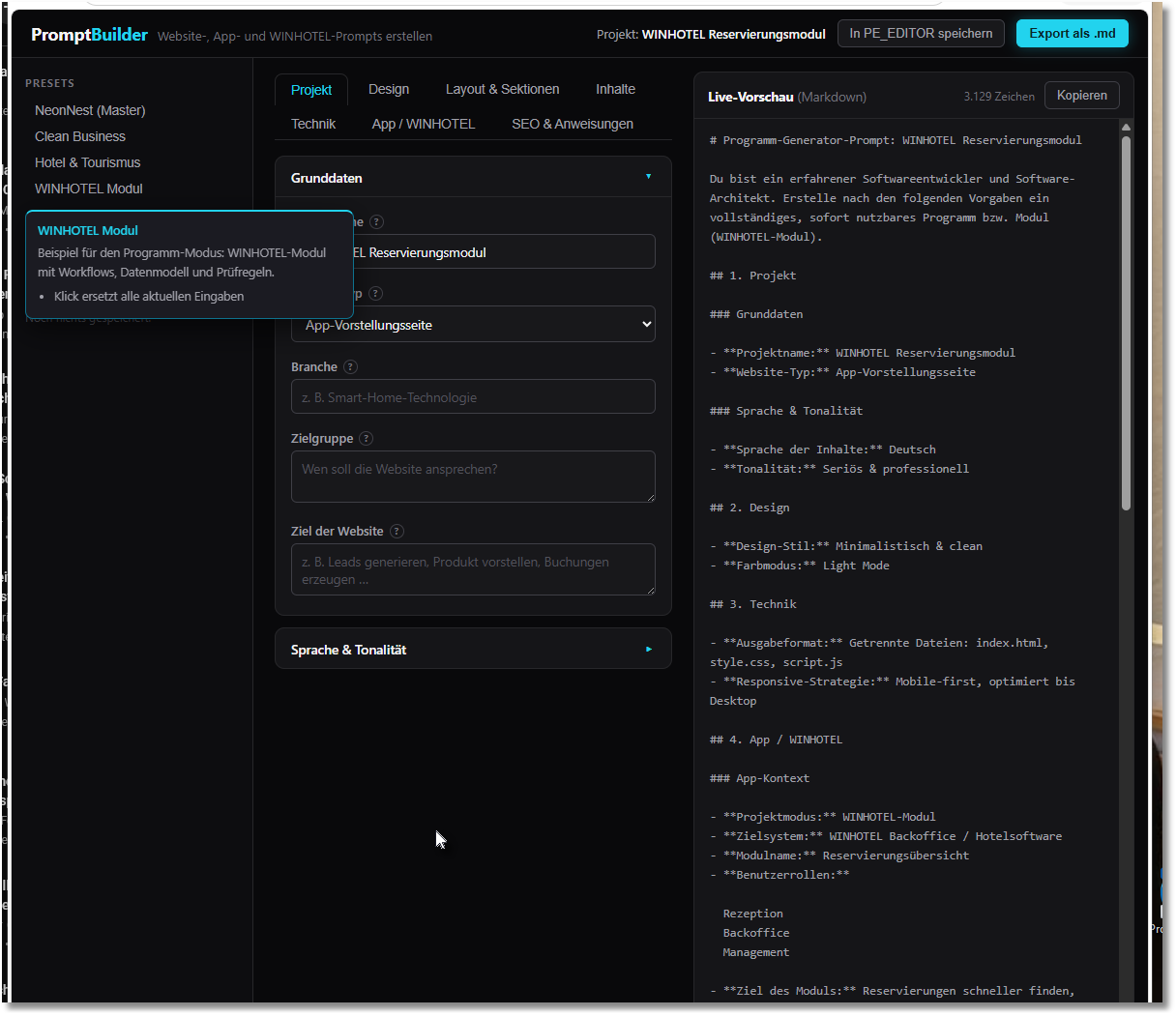
Open PromptBuilder:
http://localhost/websitebuilder/promptbuilder.html
(or click “⚒ Builder” in pe.php — never open it via double-click, otherwise step B2 will not work!)
Load and customize the “WINHOTEL Module” preset from the sidebar.
Fill out the “App / WINHOTEL” tab. The ? icons next to each field explain what should be entered:
Set Project Mode to something like “WINHOTEL Module” → the prompt will automatically receive the program introduction instead of the website introduction.
Module name, user roles, module goal
Select functions — start small whenever possible; each function increases complexity.
Define the main workflow step by step using numbered items.
Specify special cases / error cases — what must not go wrong (double bookings, missing permissions, empty lists, etc.).
Define the data model, API endpoints, and data rules.
Add validation rules — what must be tested at the end.
Open the “SEO & Instructions” tab → review “Rules & Output Instructions” (output format, language, restrictions).
Check the live preview on the right — does it contain everything the AI needs to know?
Optional: Save the configuration under a name in the sidebar so it can be modified and exported again later.
B2. Transfer the Prompt to PE_EDITOR
Click “Save to PE_EDITOR” in the header → the button changes to “Saved ✓ (ID …)”
Title = project name, Category = project mode, Link column = “PromptBuilder”
B3. Assemble and Send in pe.php
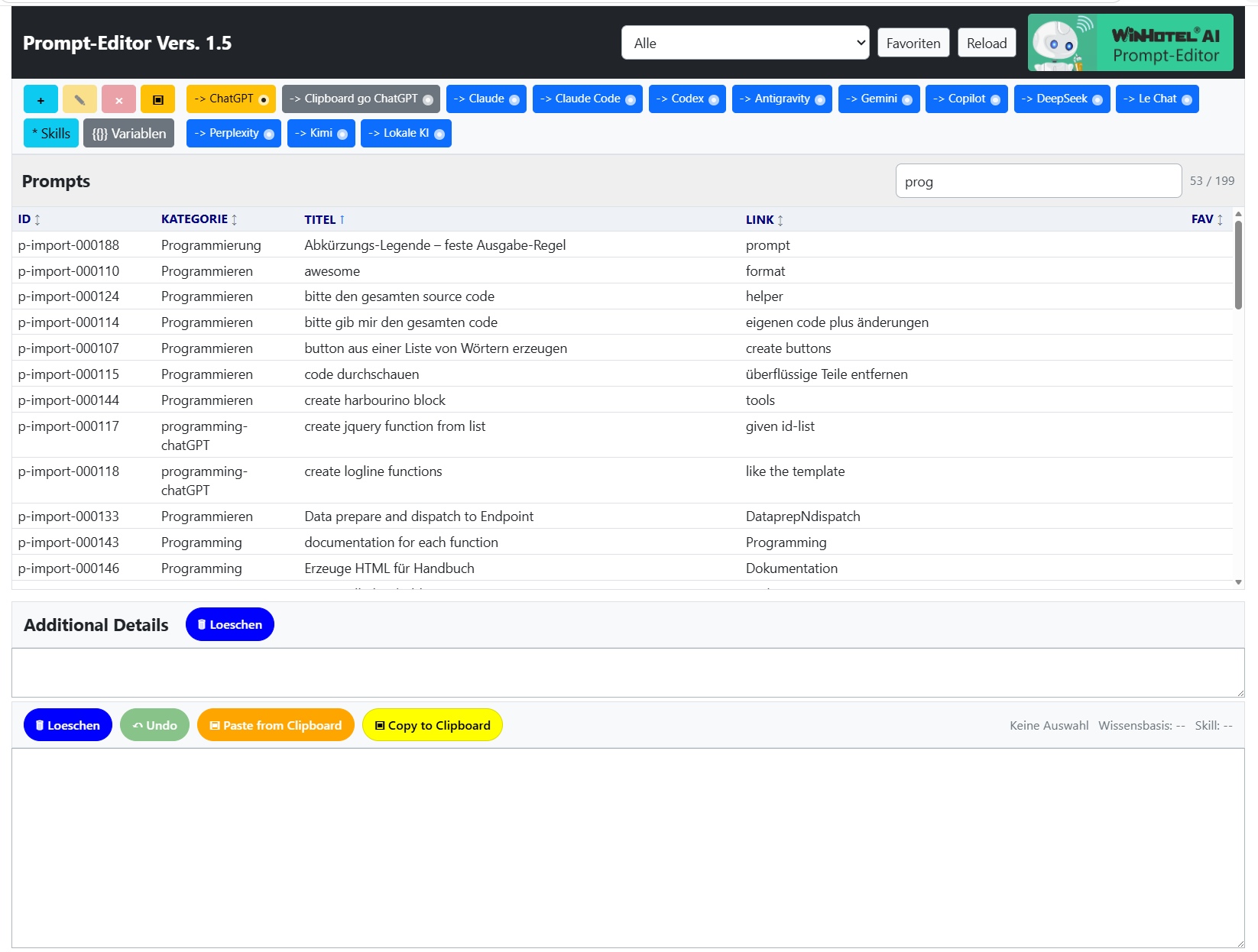
Open pe.php → click “Reload” → click the new prompt in the list.
Open “{{}} Variables” → select the project profile from the dropdown (e.g. “WINHOTEL”)
→ applies variables + skill + knowledge base in one step (confirmed by the status line)
→ briefly adjust GOAL for the current task and close the dialog.
Optional: Add current special instructions in “Additional Details” (e.g. “Please implement only the list view first”).
Click “Claude Code” (or “Claude”)
→ the final prompt is assembled (Skill → Builder Prompt → Knowledge Base reference → Additional Details), all {{variables}} are replaced, everything is copied to the clipboard, and the AI page opens.
Paste with Ctrl+V and submit.
B4. Work with the Result
Execute the validation rules: Test exactly what you defined under “Validation Rules” in the Builder.
Follow up: Use short follow-up prompts directly in the AI chat for corrections — do not create a new Builder prompt every time.
Major module change? Load the saved Builder configuration → modify it → save it to PE_EDITOR again (delete the old version in pe.php if necessary).
Part C: Feed Learnings Back into the System (Makes Every Future Module Better)
After each completed module, ask yourself:
Did I have to explain something the AI should already know? → Add it to the Knowledge Base
Did the AI violate a rule? → Add it to the Skill
Have project files or context changed? → Update the Profile (load profile, change variables, save under the same name)
Common Mistakes
Problem Cause / Solution
“Save to PE_EDITOR” does nothing / shows an error PromptBuilder was opened via double-click (file://) → open it through http://localhost/...
Prompt does not appear in pe.php Click “Reload” and set the category filter to “All”
Claude button only opens the page but nothing is copied to the clipboard "action": "copy_open" is missing from the agent in data/agents-index.json
{{VARIABLE}} appears literally in the sent text Variable is empty in the profile → select/fill the profile before clicking the provider button
Skill/Knowledge Base is missing from the sent text Before clicking the provider button, verify that the status line shows “Skill: …” and “Knowledge Base: …”
Saved Builder configurations are missing localStorage is separated by address; always use the same address (localhost)